
Python scripts
Use Python scripts in SPACE for reusable analysis, integrations, utilities, and automation. You can create and edit .py files in the Python workspace, run them interactively while developing, and use SPACE jobs when a script needs to run automatically.
For interactive analysis and development with executable cells, see Jupyter.
Creating and editing scripts
Create a Python file from the launcher or open an existing .py file from the workspace.
The editor provides features such as syntax highlighting and code completion while you work. Save scripts in the Python workspace so they can be reused and, when appropriate, executed through SPACE jobs.
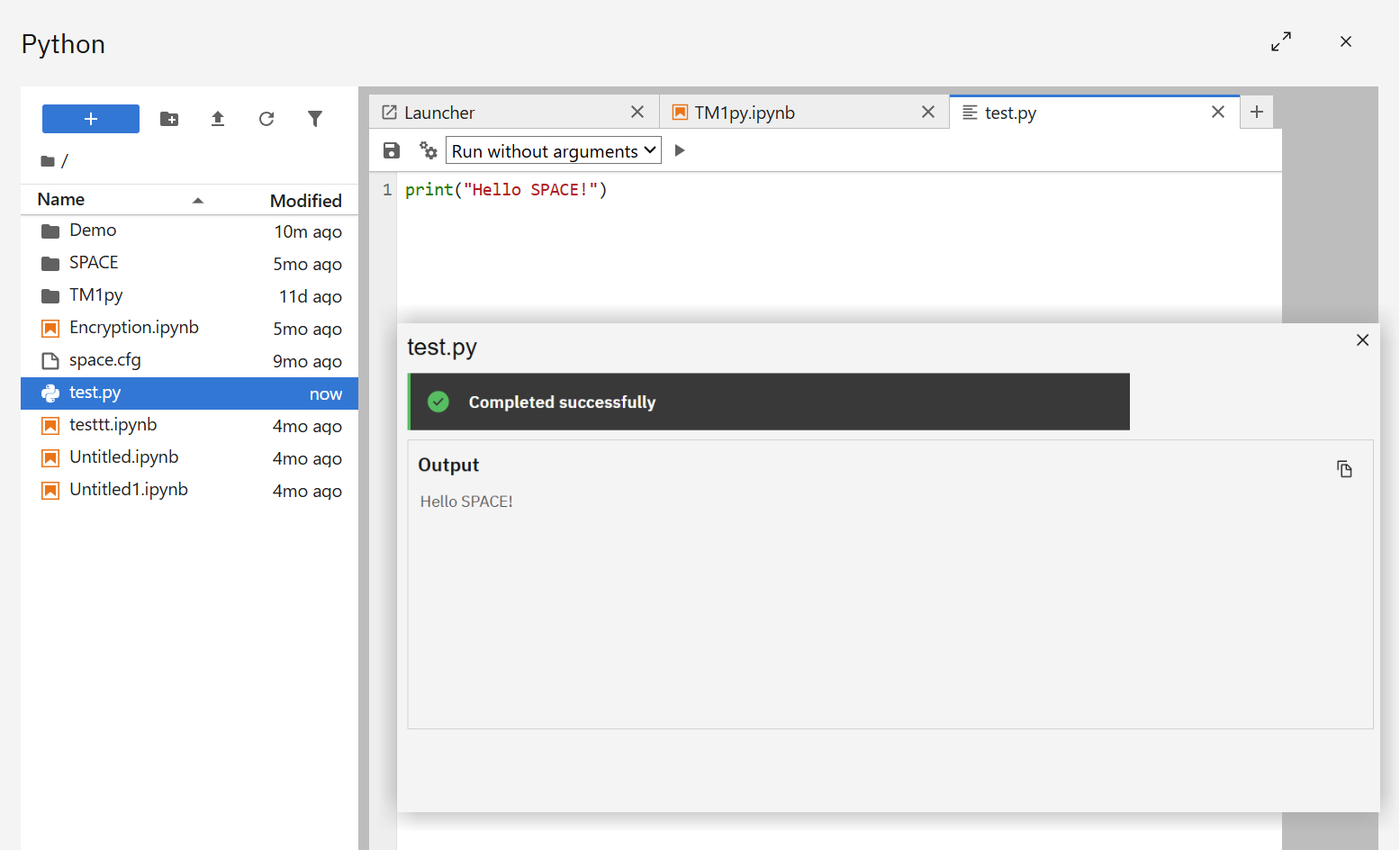
Running a script
Run a Python script directly from the editor when developing or testing it.
SPACE displays the script output below the editor, including standard output, logs, errors, and the execution status. This makes it possible to inspect results and Python tracebacks without leaving the workspace.
For example:
print("Hello SPACE!")produces:
Hello SPACE!Script arguments
Scripts can be executed with arguments when input needs to vary between runs.
This is useful for reusable scripts where values such as an environment, object name, date, or processing option should be supplied at execution time rather than hard-coded into the script.
When no arguments are required, use Run without arguments.
Using SPACE resources from scripts
Python scripts can use the SPACE Python SDK to work with supported SPACE-managed resources.
For scripts that require credentials or connection information, use Secrets and connections rather than hard-coding sensitive values in Python files.
For IBM Planning Analytics automation, TM1py can be combined with SPACE-managed connection configuration and credentials to create reusable TM1 scripts without maintaining credentials directly in the source code.
Scheduled execution
Use a Python script job when a stored script needs to run automatically.
A job can execute a Python file from the workspace and supply arguments when required. Configure its schedule and other job options under Settings → Jobs.
This allows the same script to be run interactively during development and later reused for scheduled automation without maintaining a separate copy.