
Model search
Model search lets you search across IBM Planning Analytics model objects from one place. Use it to find text, object references, element names, or code across TM1 processes, rules, cubes, chores, and other supported objects without opening them individually.
It is useful for understanding unfamiliar models, locating where logic is implemented, tracing references before making a change, and finding code that needs to be updated across multiple objects.
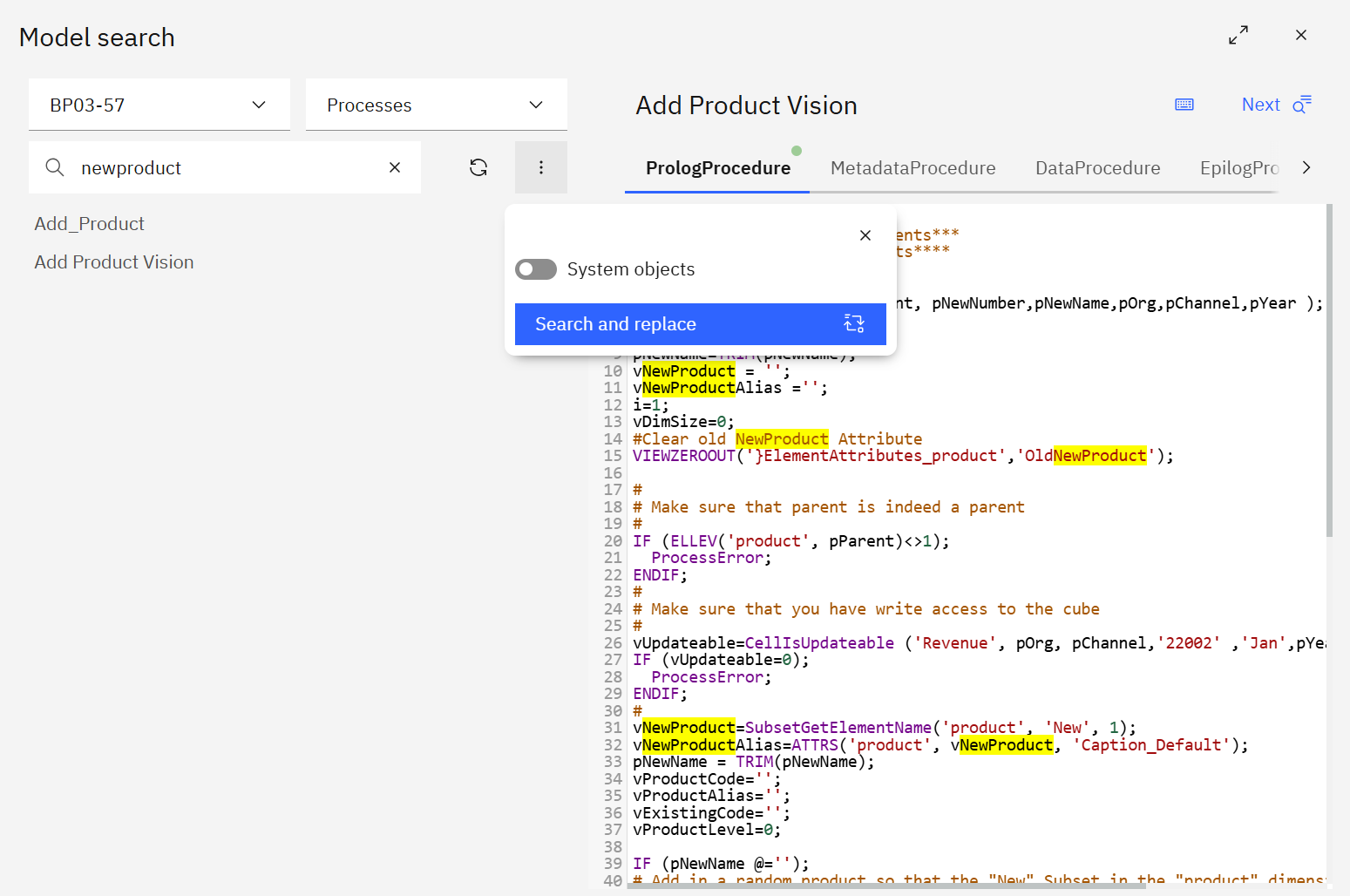
Searching the model
Select a Planning Analytics connection and the object type you want to search, then enter a keyword, object name, element name, or code fragment.
SPACE searches its indexed model content so matching objects can be returned quickly.
- Search bar — enter the text or code you want to find. Results update as you type.
- Object type — focus the search on processes, chores, cubes, rules, or another supported object type.
- System objects — include or exclude TM1 system objects from the results.
- Refresh — retrieve the latest model content when changes have been made on the selected Planning Analytics environment.
For example, you can search for a cube name to find processes or rules that reference it, search for an element or variable used in TI code, or locate a particular function or code fragment across the model.
Inspecting results
Select an object from the results to inspect the matching content directly in SPACE.
For TurboIntegrator processes, tabs such as Prolog, Metadata, Data, and Epilog make it easy to see which section contains the match.
Matching text is highlighted, and you can move between occurrences using Next or the keyboard shortcuts:
Ctrl/Cmd + G— next matchShift + Ctrl/Cmd + G— previous match
This makes Model search useful not only for finding an object, but also for quickly understanding where and how a reference is used.
Search and replace
Use Search and replace when the same text or code needs to be changed across multiple objects.
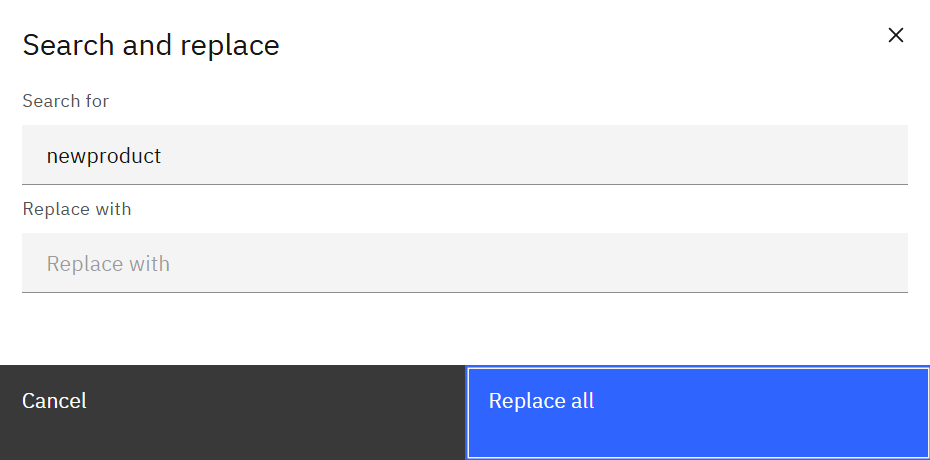
- Open the three-dot menu and select Search and replace.
- Enter the text to find and the replacement text.
- Review the search scope.
- Select Replace all to replace matching instances within the selected object type on the selected Planning Analytics environment.
Search and replace is useful for coordinated model changes where the same reference appears in multiple objects. Review the intended scope carefully before applying a replacement, particularly in shared or production environments.
Refreshing model search
Model search uses indexed model content to provide fast results. When model objects have changed, refresh the indexed content so searches reflect the latest version of the Planning Analytics environment.
Use Refresh cache from the menu when the search index needs to be rebuilt, such as after a significant deployment or set of model changes.
Only administrators can run Refresh cache.