
Model documentation
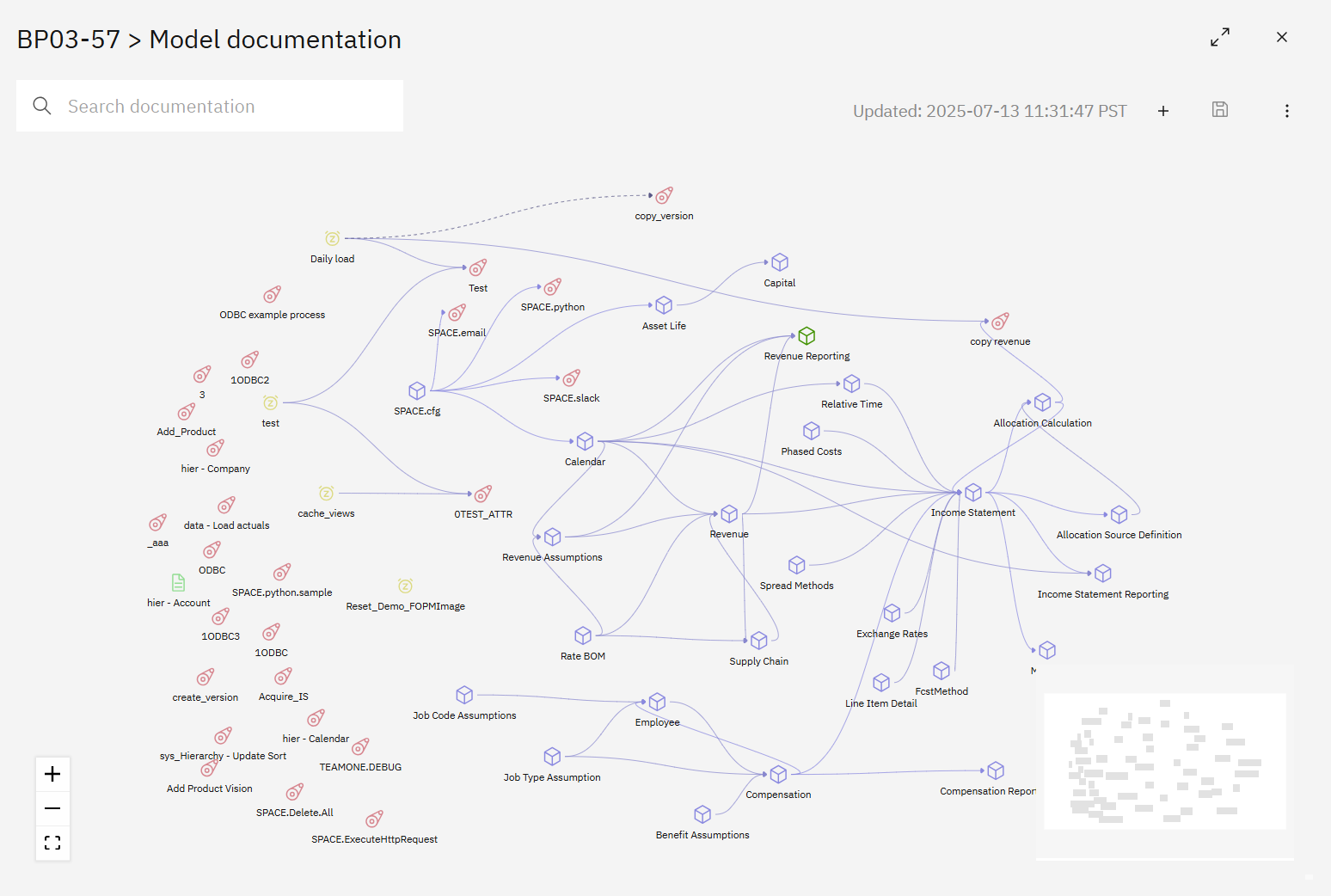
Model documentation gives you an interactive visual map of your IBM Planning Analytics model. SPACE analyzes TM1 metadata and relationships to show how cubes, TurboIntegrator processes, chores, and other model objects are connected, making complex applications easier to understand without manually tracing dependencies through code.
Use the diagram to explore data flows, understand unfamiliar models, identify dependencies before making changes, support impact analysis, and create documentation for reviews or workshops.
Creating and updating documentation
SPACE generates the model documentation from the selected Planning Analytics connection.
- Open Model documentation from the SPACE sidebar.
- Use Refresh documentation from the three-dot menu to regenerate the diagram from the latest TM1 model metadata. Only administrators or users with the Documentation update job permission can run a refresh.
- To keep documentation current automatically, create a Documentation update job under Settings → Jobs.
Scheduled updates are useful when the model changes regularly or when documentation should be refreshed after development and deployment activity.
Documenting additional relationships
Not every important dependency necessarily exists directly in TM1 metadata. You can add relationships manually to capture additional business or technical context, such as an external data feed or another dependency relevant to the model.
Select Add new, then Link to create a relationship between source and target nodes.
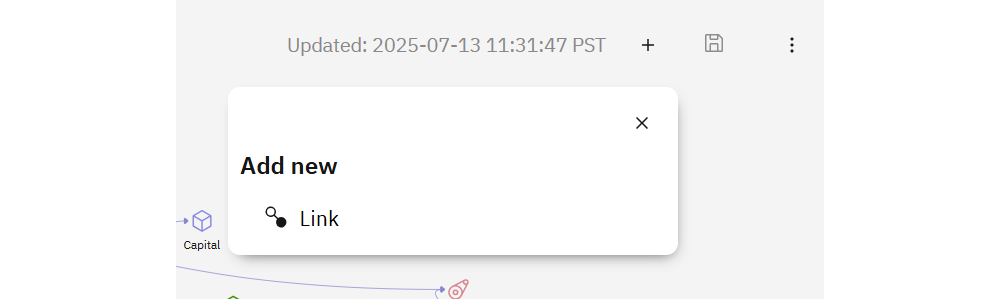
Add a description to explain the relationship and choose a color when you want the custom dependency to stand out in the diagram.
Exploring the model
Use the interactive diagram to navigate and understand the model:
- Pan and zoom through large model diagrams using the mouse or mini map.
- Search for cubes, processes, subsets, and other objects to locate them quickly.
- Select nodes and connectors to review or maintain additional information such as descriptions, ownership, and data tags.
- Highlight relationships and flows when reviewing dependencies or discussing model behavior.
- Show or hide model elements to focus the diagram on the objects relevant to the current investigation.
This can be particularly useful when onboarding to an unfamiliar Planning Analytics application or assessing the potential impact of a model change.
Display options
Open the menu in the upper-right corner of the diagram to control which information is displayed.
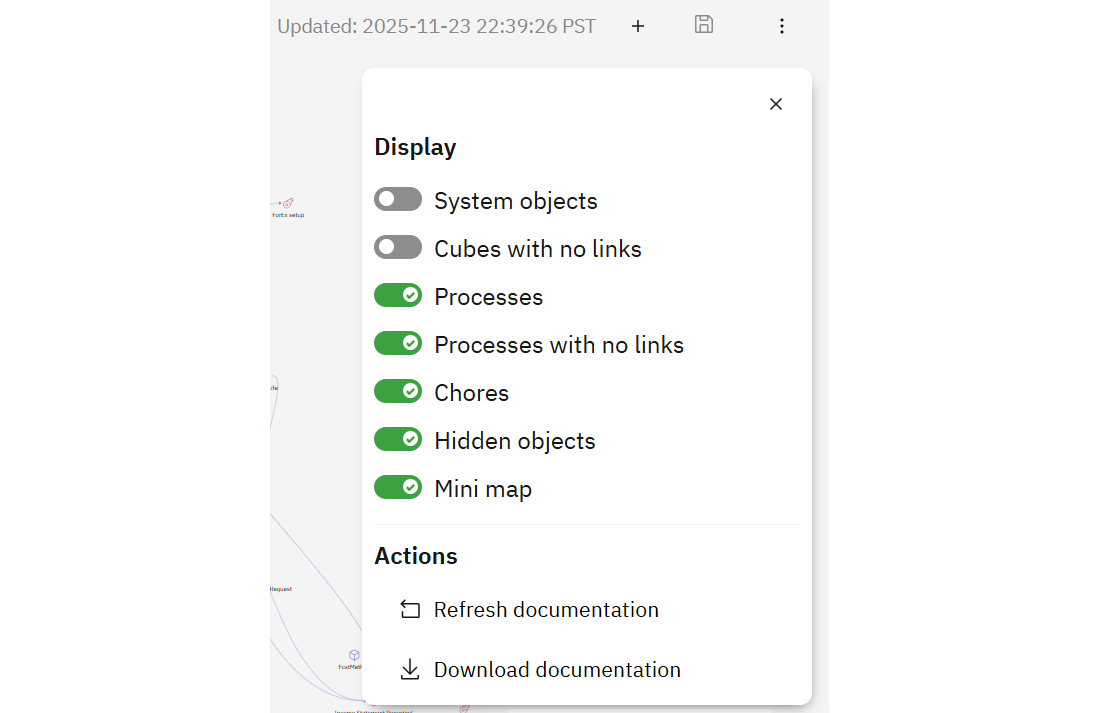
Available options include:
- System objects — include TM1 system cubes and processes.
- Cubes with no links — include cubes for which no relationships are currently identified.
- Processes — show TurboIntegrator processes.
- Processes with no links — include processes without identified dependencies.
- Chores — display chore nodes and their schedules.
- Hidden objects — reveal objects that have been hidden from the diagram.
- Mini map — show or hide the diagram overview.
These options make it easier to move between a broad model overview and a more focused view of a particular part of the application.
Exporting documentation
Use Download documentation from the diagram menu to export the current graph as a PNG image.
The exported diagram can be used in design reviews, workshops, architecture documentation, or other situations where an offline snapshot of the model is useful.
Automating documentation updates
The Documentation update job can regenerate model documentation automatically on a schedule.
Configure the Planning Analytics connection and schedule under Settings → Jobs. This helps keep the dependency diagram aligned with ongoing model changes without requiring users to refresh it manually.