
Contact Support
You can contact the TeamOne support team through either of the following channels:
- Service Desk: succeedium.atlassian.net/servicedesk
- Email: support@succeedium.com
Collecting Debug Logs
When reporting an issue, please include TeamOne debug logs whenever possible. These logs help our support team investigate the issue more quickly.
1. Enable Debug Mode
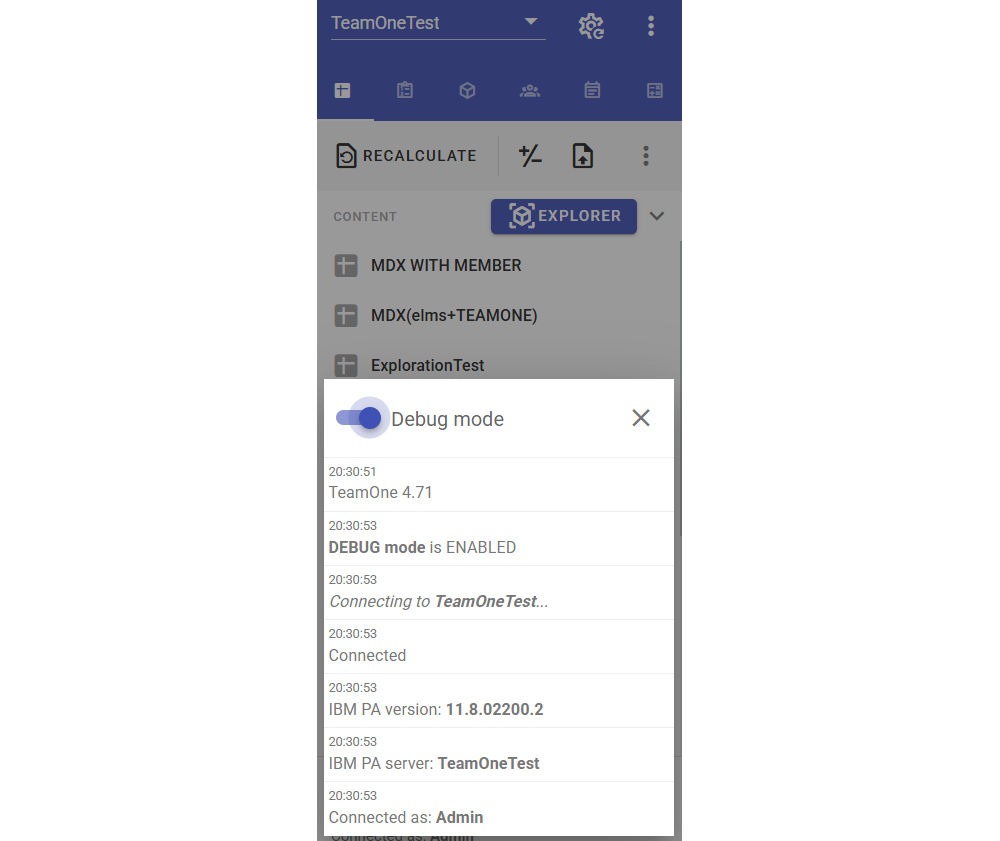
In the TeamOne sidebar, click the Log panel at the bottom and turn on the Debug mode toggle.
2. Reproduce the Issue
Reproduce the issue in TeamOne while debug mode is enabled. This ensures the relevant diagnostic information is captured in the logs.
3. Download the Debug Log
Open the Log panel again and click Download debug log.
4. Send the Log File to Support
Email the downloaded log file to support@succeedium.com, along with a brief description of the issue and the steps needed to reproduce it.